# Preparing Spritesheets
To generate the format of assets used by this project, we will be using an external project, which can be obtained in this [repository](https://github.com/slavidodo/opentibiaunity-datspr-converter/tree/v1-pipeline).
{% hint style="info" %}
If you are using a typical tibia client, there are pre-built assets for different client versions, they can be found [here](https://drive.google.com/open?id=1ViBcijSJEFTSLdbQiJTP1rp4-cUVpi-z).
{% endhint %}
{% hint style="danger" %}
The pre-built assets are built using a specified version. In order to use them, you should use the same version.
{% endhint %}
## Compiling the Project
To compile the **opentibiaunity-datspr-converter**, the only supported way is using window. If you don't use windows, you should use the pre-built assets aforementioned.
Start the solution(**.sln**) using Visual Studio (2017+). It should manage installing the required packages automatically, however if for some reason this didn't happen. Start **Nuget Package Manager Console**,

then execute the following commands
```
Install-Package Google.Protobuf -Version 3.8.0
Install-Package LZMA-SDK -Version 18.1.0
Install-Package Newtonsoft.Json -Version 12.0.2
```
finally, compile the project and open the folder where the project is built.
## Processing Sprites
Within **opentibiaunity\_datspr\_converter.exe**, create a new folder and name it to the client version you are trying to build (e.g 860 or 1200).
{% tabs %}
{% tab title="Tibia 7, 8, 9 and 10" %}
Simply put **Tibia.dat** and **Tibia.spr** inside the created folder.

{% endtab %}
{% tab title="Tibia 11, 12, ...etc" %}
Create an additional folder in the folder you just created and name it after the specified build version. Then put your assets folder inside that folder. You can obtain these assets from Tibia's directory (**packages/Tibia/assets**)

{% endtab %}
{% endtabs %}
in the folder that contains the **.exe**, shift+right click and choose **Open Powershell window here** or **Open command prompt here** depending on your windows version and your preferences, then execute the following command
{% tabs %}
{% tab title="Tibia 7, 8, 9 and 10" %}
```
./opentibiaunity_datspr_converter --version=860
```
{% endtab %}
{% tab title="Tibia 11, 12, ...etc" %}
```
./opentibiaunity_datspr_converter --version=1200 --build-version=7695
```
{% endtab %}
{% endtabs %}
The parameter **--version** indicates the client version you want to process. These are all the available parameters to use as of writing this tutorial.
| Parameter | Help |
| --------------- | -------------------------------------------------------------------------------------------------------------------------------------------- |
| --version | specify the client version |
| --build-version | specify the build version for tibia 11 sprites. defaults to 0 |
| --alpha | specify if the sprite loader should use alpha channel or not. defaults to false |
| --convert-to | conversion between two client versions.
this option is not explained here as it has nothing to do with processing spritesheets.
|
{% hint style="warning" %}
If you are processing sprites for Tibia 11 or later, you should specify the build version.
{% endhint %}
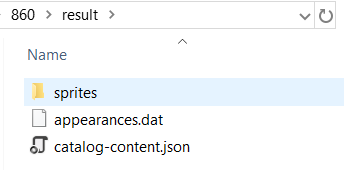
Once done, the result should look like that in either cases
## Processing Sprites AssetBundle
Open the **SpritesConverter** Unity project and add the **sprites** folder to the **Assets** folder.

inside that folder, select all textures and modify their settings as the following and hit **Apply**


then, change the asset bundle of these textures

finally, build these asset bundles, from **Assets** menu, select **Build AssetBundles**!

After this is done, you will find a new folder called **AssetBundles**, in that folder there are several files, the ones of our interest is:
* sprites
* sprites.manifest
Pick these files and store them alongside with **appearances.dat** and **catalog-content.jso**n that were generated earlier.